Pace 0.3.19 preview · for macOS
A voice assistant that sees your Mac — and keeps the work there.
Pace is a private voice agent for Apple Silicon Macs. Hold ctrl+option, ask about the screen in front of you, and Pace can answer or take an approved action. Voice, screen understanding, and planning stay local by default. No account required.
Local models keep voice and screen context on your Mac.
If you enable an off-device planner, Pace turns amber and logs it.
Free with Apple Foundation Models on macOS 26 · bundled local models are $29 once
Fig. 1 — the on-device pipeline
"open my inbox and snap it left"
Current product proof
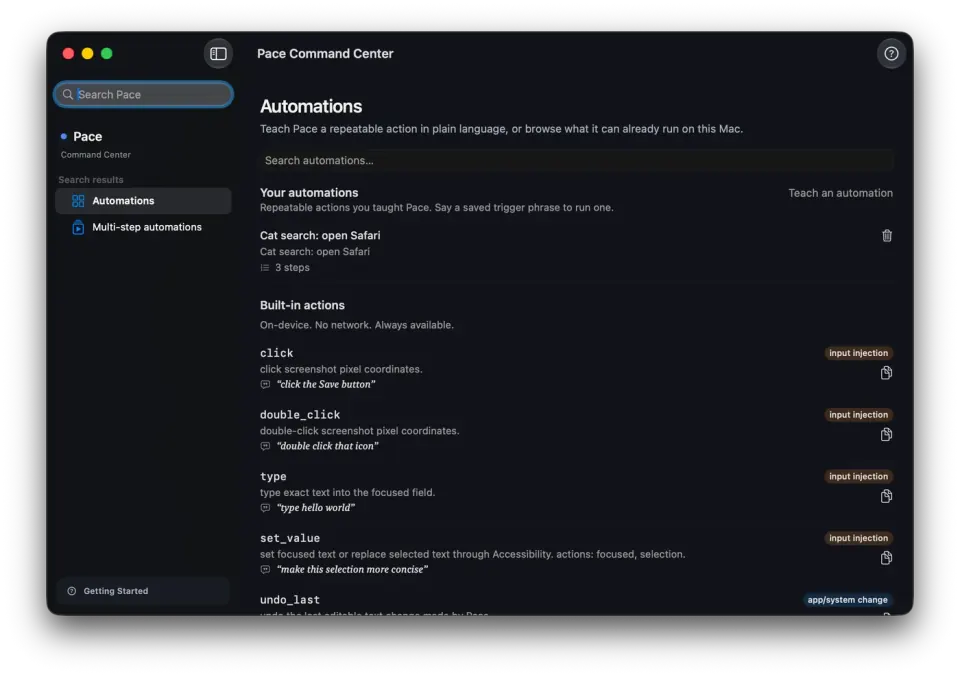
The native app, not a landing-page mockup.
This capture comes from the current macOS development build. It shows the Command Center where you inspect taught automations and the local actions Pace can run on this Mac.
The public download is the 0.3.19 preview and may differ from this development capture. It is ad-hoc signed, not notarized, and requires right-click → Open on macOS 26.
Read the release boundary
The on-device part
Other voice assistants ship your microphone to the cloud. In local mode, Pace ships nothing.
Your voice goes through Apple's on-device SFSpeechRecognizer
or WhisperKit-Large running on your Apple Silicon. The microphone
never opens a socket. The transcript never reaches a server because
there isn't one.
Your screen goes through a 4-billion-parameter vision model (Qwen3-VL) that lives on the same chip. Screenshots are processed in-memory and freed. In local mode, nothing is uploaded, cached, or analyzed off your machine.
Conversation memory, durable facts, journals, flows, and taught
skills are ordinary local files under
~/Library/Application Support/Pace/.
You can inspect or remove them yourself. Their at-rest protection is
the protection configured for your macOS account and disk; Pace does
not pretend that local storage is automatically encrypted by the app.
What `nettop` says
Inference traffic in local mode.
Downloads and update checks are reported separately.
Other voice agents got fast by renting OpenAI's realtime API. Pace got fast by owning the silicon path.
Same answer time on a second turn. Very different bargain. Theirs streams your microphone to a server that bills per minute and can change its terms tomorrow. In Pace's default local mode, it never leaves the chip you already paid for.
What it does
Nine verbs. That's the current preview.
01
Listens.
Hold ctrl+option, say something, let go. Or explicitly enable Always listening in Settings for wake-word use. Push-to-talk uses a system-wide CGEvent tap, and Pace measures time to first spoken response on every turn.
Apple Speech by default. WhisperKit-Large if you put the model on disk — Pace picks it up automatically.
02
Looks.
Ask about what's on your screen. Pace runs a local vision model + Apple Vision OCR + the macOS Accessibility tree in parallel, merges them into one element map, and hands the result to the planner.
Qwen3-VL-4B locally. Same model the LM Studio path used to host — now in-process, no max-loaded-models setting to wrestle with.
03
Clicks.
"Click submit," "snap this window left," "add this to my calendar." Pace executes through Accessibility — the right way to drive a Mac — and falls back to CGEvent only when AX can't find the element.
Every reversible change leaves a 5-second undo banner. Tap to roll back.
04
Teaches.
Learn Figma. Learn Cursor. Learn the obscure internal tool nobody documented. Pace draws on your screen, points at the next thing to click, waits for you to do it, then advances. Step-by-step, at your pace. This is live coaching on your real screen — not a saved macro.
Click-follow-along is verification-driven: Pace knows when you actually clicked the right thing and moves you to the next step automatically.
View five more capabilities
05
Remembers.
Tell it once that you use Firefox, that your design doc is the pinned tab in Arc, that Alex is the engineer not the designer. It carries that across sessions, across quits, across reboots.
Two-tier memory: last four turns verbatim, everything older rolls into a summary. One JSON file, your home directory, your eyes only.
06
Watches.
Turn on watch mode and Pace notices when your screen meaningfully changes — nothing stored unless something happened. Even with watch mode off, it keeps a passive log of which apps had focus and for how long, using notifications macOS hands out for free.
Ask "what did I do today?" and Pace answers from the screen-watch and app-usage journals. 7-day retention, per-source enable and clear in Settings.
07
Automates.
Three ways to make Pace do more than talk, and they're different on purpose. Record a sequence once and replay it verbatim. Install a pre-built recipe by voice. Or teach a skill in plain language — Pace re-reads your screen and re-plans it every run instead of blindly repeating clicks.
Flows replay pixels. Skills replay intent. "Teach a skill" is structured into a file on-device — by voice or a typed form.
08
Connects.
Calendar, Reminders, Notes, Mail, Things, Shortcuts, Messages — first-class, through EventKit and AppleScript. Broad external integrations run through open Model Context Protocol servers; anything beyond Apple's native data goes through Composio's OAuth gateway when you choose to enable it.
Apple-native stays local. External SaaS is your choice, off by default. MCP servers install one-tap in Settings.
09
Upgrades.
When I ship a Pace-tuned model that beats the off-the-shelf default, it comes through the same Sparkle updater every other Mac app uses. No re-purchase. No upgrade wall. Models live in your HuggingFace cache.
One toggle in Settings → Models runs Qwen3-4B-Instruct-2507 bf16 in-process. The next one will have a name with `pace-` in front of it.
Automation
Three ways to repeat work. They're different on purpose.
Flows are the literal tier. You record a sequence of clicks and keystrokes once; Pace replays them verbatim through the Accessibility tree. Same buttons, same order, every time — perfect when the layout never moves.
Recipes are flows Pace already ships. Say "install the morning standup recipe" and a pre-built sequence copies into your library, ready to run. No recording, no setup.
Skills are the flexible tier, and the part people conflate with the other two. A skill is a numbered list of steps in plain language — not recorded clicks. Pace re-reads your screen and re-plans it every single run, so a skill still works after a button moves or a menu gets renamed. Teach one by talking ("teach a skill that files my expense report") or by filling in a short form. The description is structured into a file by the on-device planner — the same local pin meeting notes use. A taught skill never leaves the Mac.
A taught skill on disk — illustrative
It's plain markdown. Open it, edit a step, delete it —
an ordinary file you own, structured on your Mac.
The short version: flows replay pixels, skills replay intent. If the UI is frozen and you want the exact same motions, record a flow. If the UI drifts and you want the outcome regardless, teach a skill. Recipes are just the flows worth shipping in the box.
Five recipes ship today — standup, weekly review, email zero, focus mode, end-of-day shutdown.
Reach
Local by default. A bigger brain only when you say so.
The planner runs on your Mac out of the box — free, private, no key. For the rare turn that wants a heavier model, Settings → Planner lets you pick a tier: Apple's Foundation Models, your authenticated Codex or Claude CLI, or a bring-your-own-key API. The key lives in the macOS Keychain, never in a file or a log.
Off-device is opt-in and it's loud about it. The moment a turn leaves the machine, the menu-bar capsule tints amber and a line lands in the local audit log — the same log the Privacy dashboard reads to keep its byte count honest. Deep research and scheduled tasks default to phoning a friend (Codex), but only after you've consented and a soak window has passed; otherwise an unattended fire falls back to the local planner.
Going off-device even buys back RAM. When the planner isn't resident on your Mac, the Models tab shows the freed budget and recommends the largest local vision model that now fits — so choosing a cloud brain can make Pace's eyes sharper without sending your screen anywhere.
Trigger Pace from anywhere — pace:// deeplinks
Settings → Models — RAM budget (illustrative)
The capsule is amber right now because Codex is picked.
Switch back to local and it's black again — and $0.
Meeting notes
It takes meeting notes too. Without uploading the meeting.
Say "start meeting mode." Pace records your mic and the other side's audio as two separate 16 kHz tracks — never mixed — and splits them into you said / they said turns. Transcription runs on your Apple Silicon: WhisperKit if you've put the model on disk, Apple Speech if you haven't.
When you stop, a local model writes the summary, action items, and decisions. That model is privacy-pinned: even if you've pointed Pace's planner at a cloud tier for other work, meeting synthesis can't use it. The pin is in the code path, not a setting you could fat-finger.
A week later, ask "what did we decide in standup?" and Pace answers from the notes on disk. Recordings and notes prune themselves after your retention window — 30 days unless you move the stepper in Settings.
What lands on disk — illustrative
Two WAVs and the notes, in your Library folder.
cat them, back them up, or delete
the folder — they're ordinary files you own.
Granola, Otter, and Fireflies are the tools people use for this today, and they earned it. All three process your meetings in the cloud — that's their architecture, not a bug. Which is fine, until the meeting is a hiring call, a board call, or a call you signed an NDA about. Pace's version is a folder on your Mac and a model that's pinned local.
If one of them ships a fully local mode, email me and I'll say so here.
Trust
An agent that touches your Mac has to be reversible.
Every change Pace can undo leaves a 5-second undo banner next to the cursor — created a note, drafted a mail, added a reminder, edited a field. Tap it and the change rolls back. You don't have to remember what it did; the escape hatch shows up on its own.
Missed the answer? A replay button sits under the panel for 30 seconds and speaks the exact same words back — it replays the audio, it doesn't re-run the planner, so you hear what you already heard, not a fresh guess.
When something breaks — planner offline, a permission missing, a click that didn't land, the TTS sidecar down — Pace says so in plain language. That copy is written deterministically, not by a model, and it stays quiet when you're on a call.
And the whole privacy claim is measured, not asserted. The in-app Privacy dashboard reads a local audit log and shows the exact bytes sent off your Mac, broken out by surface. It says zero until an off-device tier you turned on actually fires — then it says how much, and to whom.
Privacy dashboard — illustrative
The number is computed from the audit log,
not a promise on a marketing page.
The competition
Pace isn't Siri. It's also not Raycast, Wispr Flow, or MacWhisper. Here's where each one stops.
Siri is integrated across Apple devices and handles many system requests. It is not designed as a general screen-aware Mac agent that explains a plan, works through arbitrary interfaces, and records each off-device exception.
Raycast is a polished keyboard-first launcher and command ecosystem with AI features. If your workflow starts with a command palette, it is excellent at that job. Pace starts with voice, current-screen context, and visible computer actions instead.
Wispr Flow is centered on fast voice dictation across applications. Pace uses voice as the beginning of a turn: it can also interpret the current screen, plan an action, and carry it out.
MacWhisper is centered on transcription and dictation, with strong local processing options. It is a better fit when the job is turning speech or recordings into text rather than operating the interface in front of you.
Pace is the one doing voice and screen and actions and memory, local by default with visible consent and audit signals when a chosen planner goes off-device. That combination — not a generic feature count — is the product boundary.
These are category-level distinctions, not a permanent ranking.
See the source-linked field comparison →
Early-access feedback
What private beta feedback emphasized.
Screen reading matters most when it leads to an action: finding the right control and using it locally, not merely dictating text.
A single menu-bar workflow can replace the context switching between shortcuts, dictation, and question-answering tools.
Showing the plan before execution makes computer actions easier to understand and trust.
Tried Pace and willing to be quoted by name? Email me — I'll add real names only with permission.
Field guides
Understand the local stack, not just the pitch.
What it costs
You pay twenty-nine dollars one time and Pace is yours. The model runs on your Mac. The inference costs me nothing on an ongoing basis, so there's nothing to charge you for monthly.
The current manual purchase covers the current release and bundled local models. Payment, delivery, included updates, and support are confirmed in writing before money changes hands; this page does not promise a future model, delivery date, or price.
Try it free first. If your Mac has Apple Intelligence on, Pace runs against Apple's Foundation Models tier at no cost. It's the same app — you'll know within a week if the bundled stack is worth the $29.
Studio is planned at $5/month. It would add managed Composio routing. It is not live today; the current app lets you connect Composio with your own API key instead.
Manual terms. The current release has no in-app activation or deactivation system. The payment method, delivery, support, and any refund terms are confirmed before purchase.
This is a paid product with a manual purchase path today. Email opens with the price and Mac details pre-filled; payment and delivery are confirmed before you pay.
Current preview: macOS 26, Apple Silicon, 16 GB RAM minimum.
32 GB if you want the bigger bf16 model loaded all the time —
otherwise the 4-bit variant is one Settings toggle away.
Before you buy
The questions people actually ask.
01. Does it really run with no network?
Yes. Voice, screen reading, the planner, TTS — all on your Mac. The one exception is `download_file`, which fetches a URL only when you explicitly tell Pace to. The Privacy dashboard inside the app shows the exact byte count, broken out by surface.
02. Where do my meeting recordings go?
`~/Library/Application Support/Pace/meetings/` — two WAV files per meeting (your mic, their audio) plus the notes. Transcription and note-writing both happen on your Mac, and the notes model is pinned local: it can't use a cloud tier even if you've enabled one elsewhere in Pace. Everything auto-deletes after the retention window in Settings — 30 days by default. Want it gone sooner? Delete the folder. They're ordinary files.
03. How much disk and RAM are we talking?
The .app is about 50 megabytes. The in-process model — Qwen3-4B-Instruct-2507 in bf16, one toggle in Settings → Models — is ~8 gigabytes, downloaded once into your HuggingFace cache. With the vision model and transcription also loaded, peak RAM is ~14 GB. If your Mac has 16 GB, swap to the 4-bit variant in Settings → Models; that runs comfortably in ~6 GB.
04. What Macs?
The current 0.3.19 preview requires macOS 26 on an Apple Silicon Mac. Intel Macs aren't supported and there's no plan to add them — MLX is Metal-backed, and the on-device story is the product boundary. The shipped archive's Info.plist is the source of truth for this requirement.
05. iPhone? Windows?
No, and not on the roadmap. Pace is a Mac product. The Apple Silicon stack is what makes "voice + screen + actions, on-device, $29 once" possible at all. Spreading it across three operating systems would mean rebuilding the assumptions and raising the price.
06. What happens when you ship your own model?
There is no promised delivery date or future price today. The current manual purchase covers the current release and bundled local models; included updates are confirmed before payment. Sparkle can deliver app updates, but its presence is not a commercial promise.
07. Do I need LM Studio installed?
No. The bundled MLX path covers planning, vision, embeddings, and TTS in-process. LM Studio is still supported as the power-user option if you'd rather run the larger Qwen3-30B model, but it's not required for a fresh install to be useful.
08. How are purchase terms handled?
The current checkout is a manual email path. Payment, delivery, support, included updates, and any refund terms are confirmed before payment. The current release has no in-app licence activation or deactivation system.
09. What if I don't like the voice?
Settings → Voice picks any Apple Premium voice on your Mac, or the bundled Qwen3 TTS, or the Kokoro sidecar if you want the higher-quality option. You're not locked into one synthesiser.
10. What's Learning mode?
You point Pace at an app you don't know — Figma, Cursor, Logic Pro, an internal admin tool — and ask it to walk you through something. Pace draws on your screen, says "click here next," and when you actually click, it advances to the next step automatically. The verification loop is the new part: Pace watches your click events and only moves forward when you did the right thing.
11. Can I leave it always-on?
Yes, as an explicit opt-in. Enable Always listening in Settings and Pace opens a bounded listening window after its wake phrase. It is off by default; push-to-talk (ctrl+option) remains the clearest way to control when Pace can hear you.
12. Can it tell me what I did today?
Yes, from passive local journals. Watch mode logs when your screen meaningfully changes; a separate app-usage journal tracks which apps had focus and for how long, using notifications macOS hands out without any extra permission. Research turns get their own history. Ask "what did I do today?" or "what did I research about X?" and Pace answers from those journals — all on disk, 7-day retention for the screen/app logs, per-source enable and clear in Settings. In local mode, nothing is uploaded.
13. Can I trigger it from Raycast or Shortcuts?
Yes. Pace registers `pace://` deeplinks — `pace://listen`, `pace://chat?text=...`, `pace://watch?enabled=true`, and `pace://panel` — plus App Intents for Siri, Shortcuts, and Spotlight. Wire a Raycast script or a Shortcut to any of them. A deeplink runs the same intent and approval pipeline your own voice would, so it can't do anything you couldn't do yourself.
14. What happens if it clicks the wrong thing?
Every change Pace can reverse leaves a 5-second undo banner next to the cursor — tap it and it rolls back. If a click misses entirely, Pace says so in plain language rather than pretending it worked. And there's a 30-second replay button that speaks the exact same answer back without re-running the planner, in case you missed it.
Anything else? email me and I'll add it here.